How to hide express payments in Shopify
Hiding express payments is not fully supported by Shopify at the moment, however there's a work around that can be implemented in less than 5 minutes.

Jackson Miller
Read in 2 minutes
When it comes to customizing your checkout, Shopify doesn't allow you a lot of
options, unless you're in the Shopify plus plan.
There used to be
an option to add your own css and javascript files to the checkout, but they
soon disabled this option.
If you want to hide express payments
there's currently a work around that's partially supported by
Shopify and that can be implemented in around 5 minutes.
Warning before you start:
This works by hiding all payment methods until your customer enters a shipping address. If you have a one page checkout, we'll teach at the end of the article on how to add a instruction to the customer.
1. Install Scala Hide Payments (or your app of choice)
It's not necessary to use an app, but it's by far the easiest way to accomplish this, we recommend Scala Hide Payments because it provides this feature for free.
2. Select the "Hide Express Payments" rule
The app will promp you to add a new rule, just select the "hide express payments" rule in the modal:
3. Save the rule in active mode
You can also add additional conditions, but we advise you to keep it simple for now:
4. Test your rule
To test your rule open a new browser in private mode, add a product to yourt cart, and then head to checkout.
All payment methods should be hidden, until the customer enters a valid shipping address.
4b. Add instructions to customer (optional)
If you have a one page checkout we heavily advise you to add a custom
instruction to the customer, otherwise he might think your store is not taking
payments.
This can be easily achieve by doing the following:
-
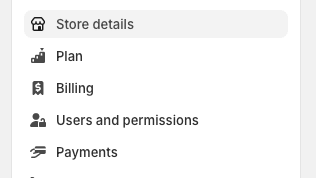
Go to settings -> payment, it should be at a link that looks like the
following: admin.shopify.com/store/YOURSTORE/settings/payments:

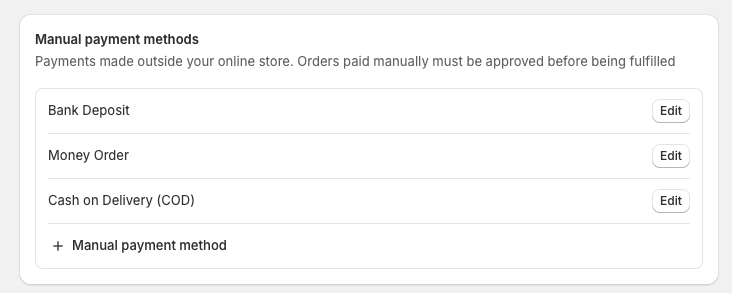
- Click in "+ Manual payment method" at the bottom of the page: